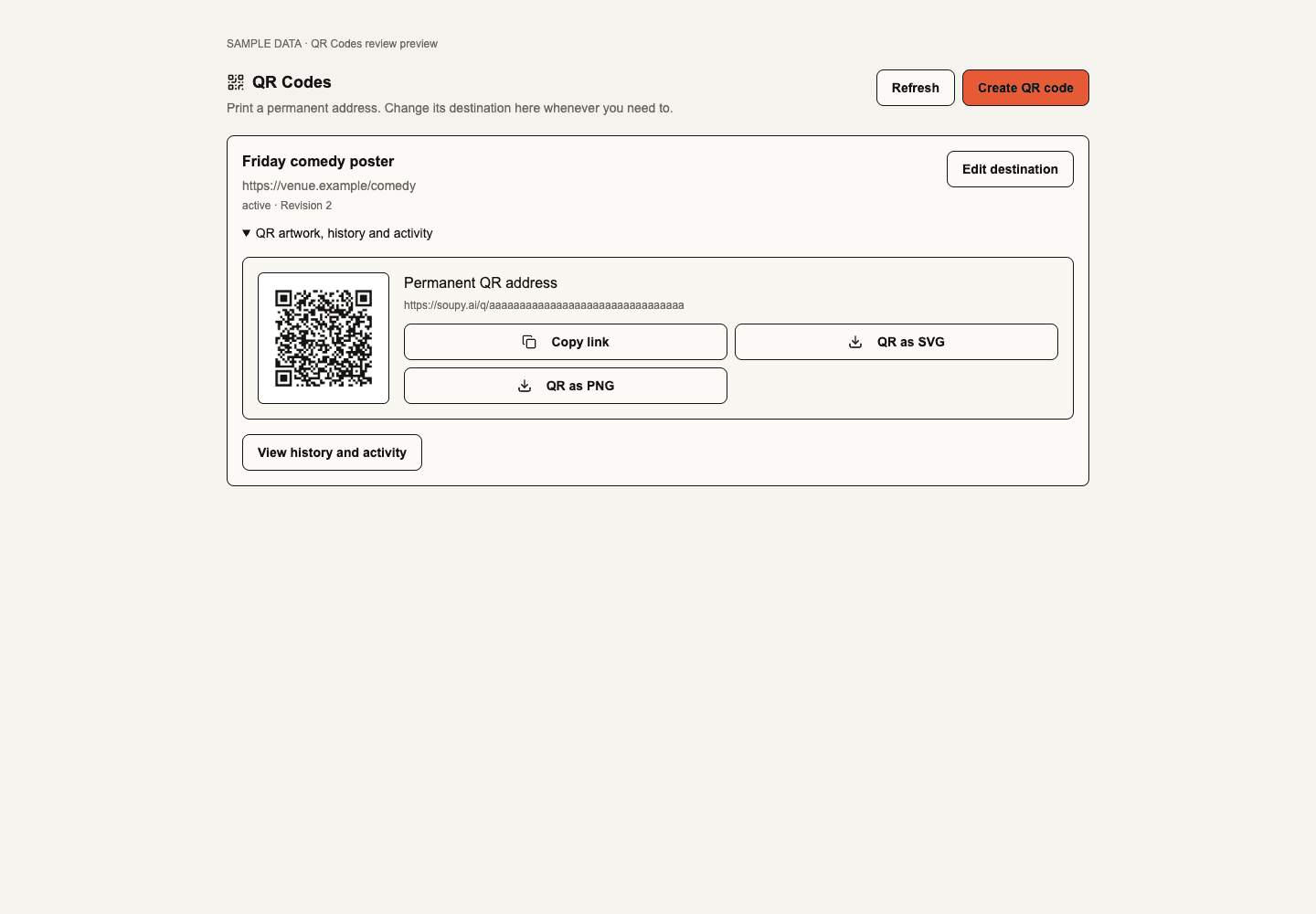
Prepared QR Codes and self-printed Smart Tags. The web QR Codes workspace is
at /app/{orgSlug}/qr. Central management requires the QR product to be enabled
and capability-mode explicit qr.view access; it is not added to legacy administrator profiles.
qr.manage allows creation and editing of standalone public links. Source-owned
codes also require current access to their Event, Series or Booking experience.
The Advanced access view groups QR Codes under Business & systems and shows
the person's current QR capabilities and their source. A legacy administrator
profile alone does not grant QR library access.
A prepared first QR access procedure gives one
existing business administrator the QR library and code management permissions
after a reviewed plan and an authorized production apply.
Create and manage a code
Choose Create QR code, give it a label and select a public website, an Event,
a Series or a Booking experience you can manage. Public website destinations require HTTPS
and accept UTM campaign tags only; private access links, fragments, other query
values and nested QR links are refused. Save creates a permanent /q/{key}
address. Download its SVG or PNG from QR artwork and history.
Artwork has a white background and a four-module clear border. Test actual
printed labels at their intended size before distributing them.
Edit destination changes the same code without changing its printed address. The original source association remains fixed. Paused and archived codes can be made active again. Revoke QR permanently disables a code irreversibly. Every saved change creates a revision; simultaneous stale edits are refused. Recent history shows up to 50 permitted revisions. Restore this destination creates a new revision with the selected prior destination; current source access still applies. It preserves the current label and active/paused state.
The central library is a compact table with label, source, destination, status, lifetime recorded requests and actions. Search by code label across the Business or filter by status. Details opens the selected row’s artwork, history and activity beneath it. The table and destination pickers use bounded pages. A page can contain no visible records after source permission filtering. Next page continues when more records exist. Draft values remain during temporary access checks; source refusal removes inaccessible content. Saving and Cancel remain explicit.
Review QR codes by business and function
In the prepared web update, switch Business in the workspace header. The QR function selector stays within that Business. Choose General, Events, Event series, Bookings or Soupy Studio. Ownership determines the function, so changing a destination keeps the code in its original function. Use All public codes to create a code, or create it in its owning module. Search and status apply to the current view. A page can be empty after access or function filtering, with more results on the next page.
Smart Tag batches groups printable blank tags by a named batch and function. Existing batches appear under General. Choose View codes to inspect, search or assign codes in a batch. Download the label sheet with Manage QR codes. The function label helps find a batch and does not grant access to a destination. Current permissions still govern every assignment and reprint.
Assets shows restricted scan tags that you can manage in the issuing Business. Maintenance shows fault-report tags from Maintenance when you have triage access at the tag's Site. These sections show labels and status. Issuance, one-time delivery and revocation remain in the source modules. An Asset tag that allows fault reporting stays in Assets, while Maintenance still handles the fault. Assets and Maintenance can issue and use their own tags with their existing permissions independently of central QR access. The Stock section shows the same Stock location labels as Stock → QR labels. The prepared Stock tag addition also projects its assigned location, product, container and individual-item tags into this same source-owned section. Choose locations across bounded pages and download up to 100 labels in one sheet. Stock-only users can view and print their location labels with current Stock permissions. Scanning opens the selected location after sign-in. Retired locations and replaced Stock entitlements are refused.
Business and function review shows these prepared views with fictional records.
Connect QR visits to purchases
The prepared web update adds Purchases from this QR inside a code's Details. Choose Connect campaign and select an accessible CRM campaign. This creates a dedicated tracking placement for that QR. Connection requires central QR management, current source/destination authority and CRM campaign management. Viewing its purchase totals also requires current campaign access. Use Refresh purchases to load a new dated snapshot.
The current campaign connection reports the last 90 days of confirmed Orders, payments received and refunds. Currencies keep separate totals. It follows consented last-touch attribution through supported Soupy purchase journeys. A website needs the configured Soupy tracker and an active tracking site. External checkout needs a supported attribution integration. Consent refusal, session expiry and unsupported handoffs leave some purchases unlinked.
Request totals include repeats and previews. A copied tracked link can also lead to an attributed purchase. The purchase report does not identify which requests came from a physical camera scan. When a campaign exceeds the bounded reporting limit, totals show as unavailable. Existing CRM campaign reports keep the commercial source history.
A scheduled destination cannot connect in this slice. Saving a different destination or schedule disconnects the tracking connection. Reconnect to bind the new destination. A changed canonical Event or Series address navigates to its current page and requires a fresh matching connection before tracking resumes. Pausing or disabling the saved tracking link leaves the QR's ordinary destination available if its source is available.
Use QR within Events, Series and Bookings
In an Event, Embeds → QR Codes opens codes owned by that Event. The Embeds section list lets you switch between the existing embed editor and QR Codes while keeping same-Event drafts open. In a Series, Embeds → QR Codes opens codes owned by the Series. A new code defaults to its published programme address and follows later address changes. The existing Ticketing management permission governs both contextual editors. In Bookings, open an experience's Embed code dialog to manage its QR codes under the existing Booking settings authority. These contextual tools do not require the separate central QR entitlement. They manage the same records as the library. Creating a QR does not publish an Event, Series or Booking experience. Unpublished, disabled or invalid source destinations produce a neutral unavailable response; scanning never performs a booking, payment, admission or operational command.
Event, Series and Booking targets use their current canonical published addresses. Disabling a source product removes its public scan path. Standalone external codes are bound to the QR entitlement that created them; disabling or retiring that entitlement stops resolution, and a replacement entitlement does not revive old codes. QR Settings explains the stage 1 permission and retention policy. No per-business redirect-domain editor is included.
Use QR within Soupy Studio
Open a saved, editable Studio pack, select a frame and choose Add managed QR code in Add to frame. This requires an enabled QR product, Manage QR codes and Studio design access to the pack and its Site. Enter a label and a public HTTPS website. Create and add to frame creates a permanent QR Codes record and places its artwork on the selected frame in the current size. Save the pack before exporting the frame. The same square QR, with a four-module quiet zone, is drawn in Studio and exported artwork.
A managed QR can be moved or resized like a layer. Applying another look, reattaching the frame layout and editing other layers keep its address and placement. Removing the layer affects the artwork in that size. Use QR Codes to pause, archive or revoke the link itself. The dashboard identifies it as Soupy Studio as soon as it is created, including if the Studio draft is unsaved. Edit the destination there without changing the address printed in an earlier export. This work is available in the web workspace.
The pack’s QR code switch controls the direct source QR on End frames. It uses the captured source’s link and is independent of managed QR layers. Older direct-link exports continue to scan to the addresses encoded in their artwork.
Print and assign Smart Tags
In the live layout, open Smart Tags and batches in the QR library to issue
1–100 distinct blank
tags for the current Business. Batch creation and printing require qr.manage.
The label sheet prints numbered QR codes with a four-module clear border and
a short reference. Print at actual size. An unassigned tag shows a neutral
message when scanned, without changing ownership or recording a redirect request.
On a phone, copy the scanned address, sign in and choose Find a Smart Tag in the owning Business. Select a public website, Event or Booking experience and save. Source permissions apply to both the current and replacement destination. Choose Unassigned to remove an assignment, or use history to restore a prior destination. The printed address stays the same. Revocation disables the tag permanently and removes its print controls. Batch reprints omit revoked tags and require current access to each remaining destination. Disabling or replacing the issuing QR entitlement stops the tags from resolving.
This prepared web workflow issues batches directly to the current Business. Commercial pack activation, transfer between businesses and native camera assignment are later work. A public tag address cannot claim a batch.
Schedule a website
In Edit destination, switch on Schedule a website, enter the alternate public HTTPS address and choose its start and end in UTC. Save the change. The same QR code opens the alternate from the start time until the end time, then uses its regular destination. The regular destination and any fixed Event or Booking source must still be available. Pause and revocation apply to both destinations. Assign a blank Smart Tag before scheduling.
The editor supports one window per code. Restore destination and schedule restores both values from the selected revision while retaining the current label and lifecycle status. Turning off the schedule removes the window. The link request record retains which requests used the alternate.
Read request activity
The central table shows lifetime recorded requests. Open Details for the last 30 UTC days, the latest UTC day and a daily chart. Contextual QR panels show the chart beside the code. Daily breakdown lists dates with requests. Refresh updates the snapshot and its displayed time. If access changes or activity is unavailable, the panel can withhold the numbers. A zero appears for an available snapshot with no recorded requests.
Counts are best effort and include repeat opens, previews and bots. HEAD requests record nothing. Individual request records bind to the resolved destination revision and expire after 90 days. Older daily counts roll into a permanent total per code. The lifetime figure starts with whatever counts were still retained at rollout and includes future requests. During an unusually large cleanup backlog, the chart remains available and the lifetime figure shows Unavailable until cleanup catches up. The QR counter stores no IP addresses, cookies or browser identifiers. Analytics failure leaves valid redirects available. Managed QR codes do not link requests to purchases. The CRM Growth campaign guide describes separate consented campaign tracking.
The activity breakdown, lifetime totals and Series QR tools are available in enabled web workspaces. Lifetime activity review shows the updated card. Desktop and phone review shows both themes with fictional records.
Public redirect addresses use temporary redirects and prohibit caching. QR works in a normal browser without sign-in. Protected module operations require sign-in and current permissions. Ticket, Wallet, reader and existing restricted operational credentials retain their original lifecycles. Existing direct-destination artwork keeps its printed address. This web workflow issues QR artwork and label sheets. NFC writing and native management remain future work.