Ticketing owns the public programme, admission products, ticket inventory, attendees, door admission and event aftercare. A business needs the module enabled and each operator needs access to the particular organisation, Site, Space, Brand, Series or Event being served.
Screens and navigation
The workspace lives at /app/[orgSlug]/ticketing. The primary destinations are
Series, Events, Orders, Add-ons, Passes, Attendees, Communications, Reports and
Settings.
| Screen | What the operator can do |
|---|---|
| Events | Browse the accessible programme in List, Photo or Calendar view with each Event’s Series; inspect admission and sales state, open an occurrence, create an event. |
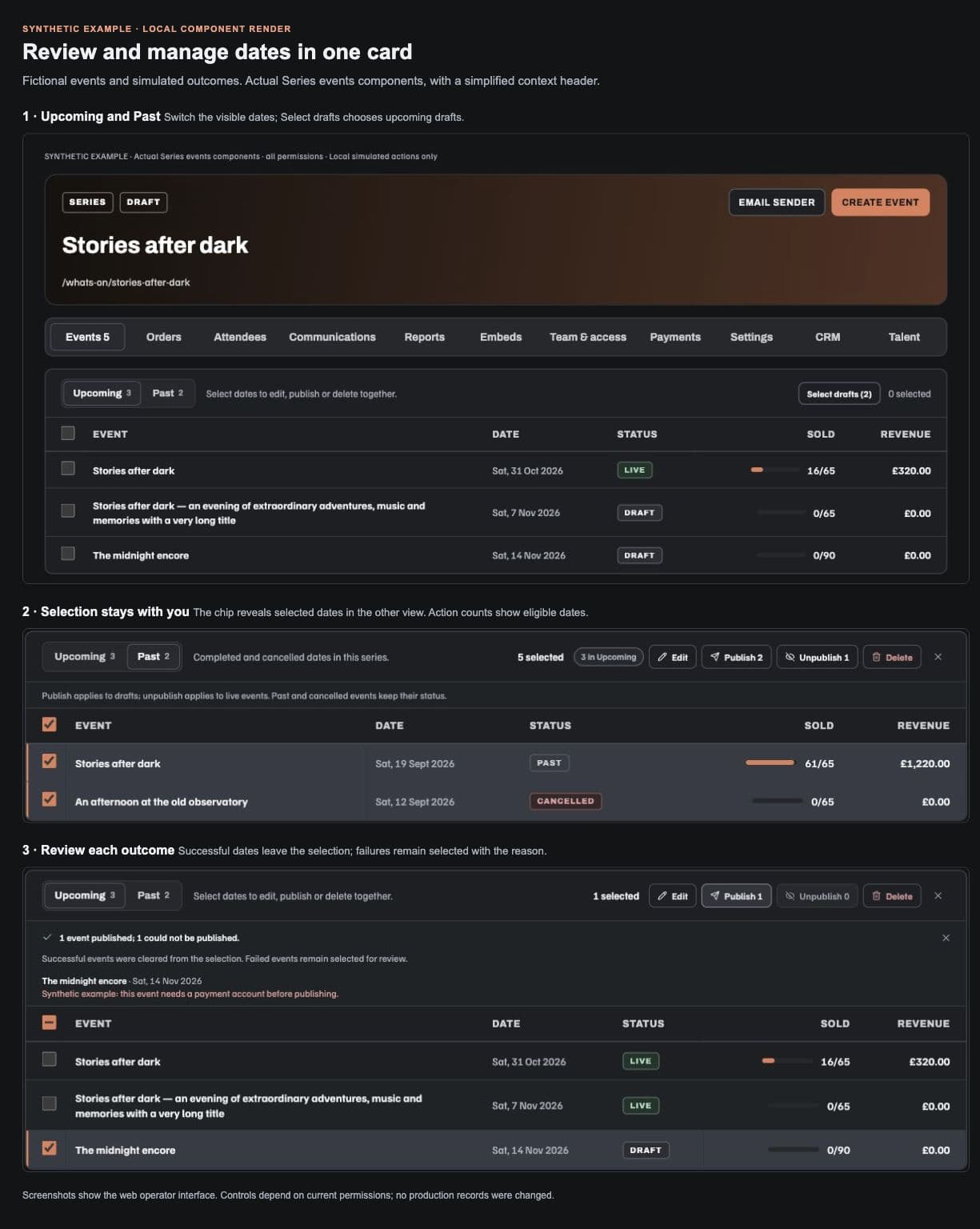
| Series | Group a recurring programme, switch Upcoming/Past occurrences in one Events card, retain bulk selections across views, see permitted sales and capacity, and manage recurrence and shared presentation. |
| Event → Overview | Read event details, sales readiness, guest picture and next actions. |
| Event → Talent / Lineup | Offer or attach accepted acts, arrange billing roles/order and publish the reviewed lineup when Talent is accessible. |
| Event → Tickets | Configure ticket types and shared pools; manage promoter holds and complimentary/accreditation issuance in a separate tabbed card. |
| Event → Questions | Add order-level or attendee-level checkout questions and permitted answer options. |
| Event → Included activities | Configure included activity entitlements and capacity separately from admission. |
| Event → Optional add-ons | Adopt published optional purchases into this event's offer. |
| Event → Orders / Resale / Discounts / Waitlist | Service purchases, inspect official resale, maintain codes and review waiting-list invitations. |
| Event → Attendees / Interested / Check-in | Serve holders, inspect explicit interest registrations and admit guests. |
| Event → CRM / Loyalty / Bookings / Staff brief / Automation | View separately authorised contributions from the connected module. |
| Event → Communications | Compose scoped event service messages and inspect their delivery context. |
| Event → Reports / Live settlements / Feedback | Review sales, governed settlement evidence and guest feedback under separate permissions. |
| Event / Series → Embeds | Manage widgets for this exact resource; Series also links to the individual embed for any accessible occurrence. |
| Event / Series → Team & access | Manage local invitations, user types, grants and blocks under the existing access permission. |
| Event / Series → Payments | Select the payment account and VAT treatment together under the existing payment permission. |
| Series detail | Events, Orders, Attendees, Communications, Reports, Embeds, Team & access, Payments, Settings, plus separately authorised CRM and Talent contributions. |
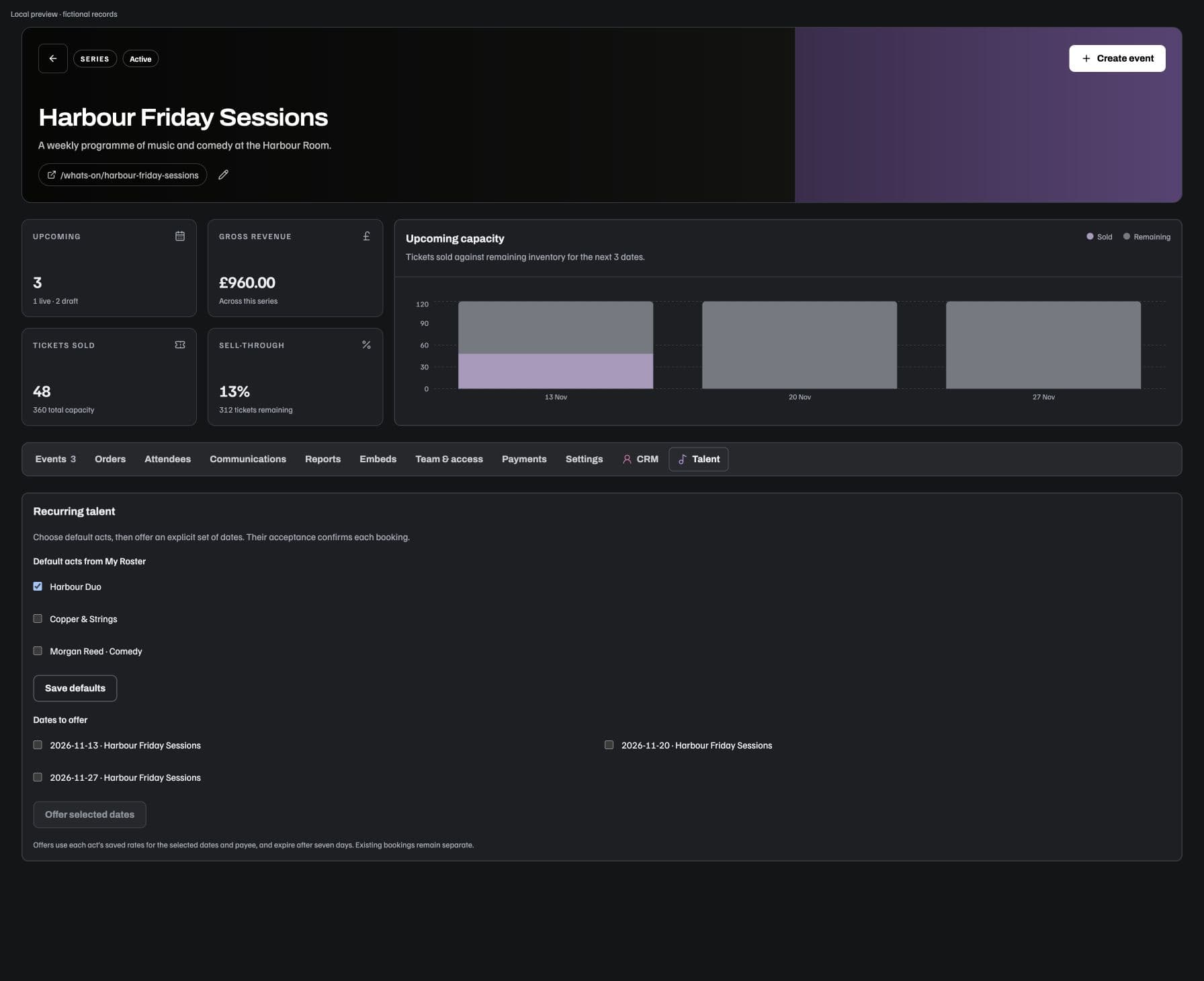
| Series → Talent | Choose recurring roster defaults and offer selected actual occurrences when the Talent contribution is accessible. |
Tabs are permission-dependent. An Event route does not automatically grant attendee identities, finance, feedback recovery or a connected module's data.
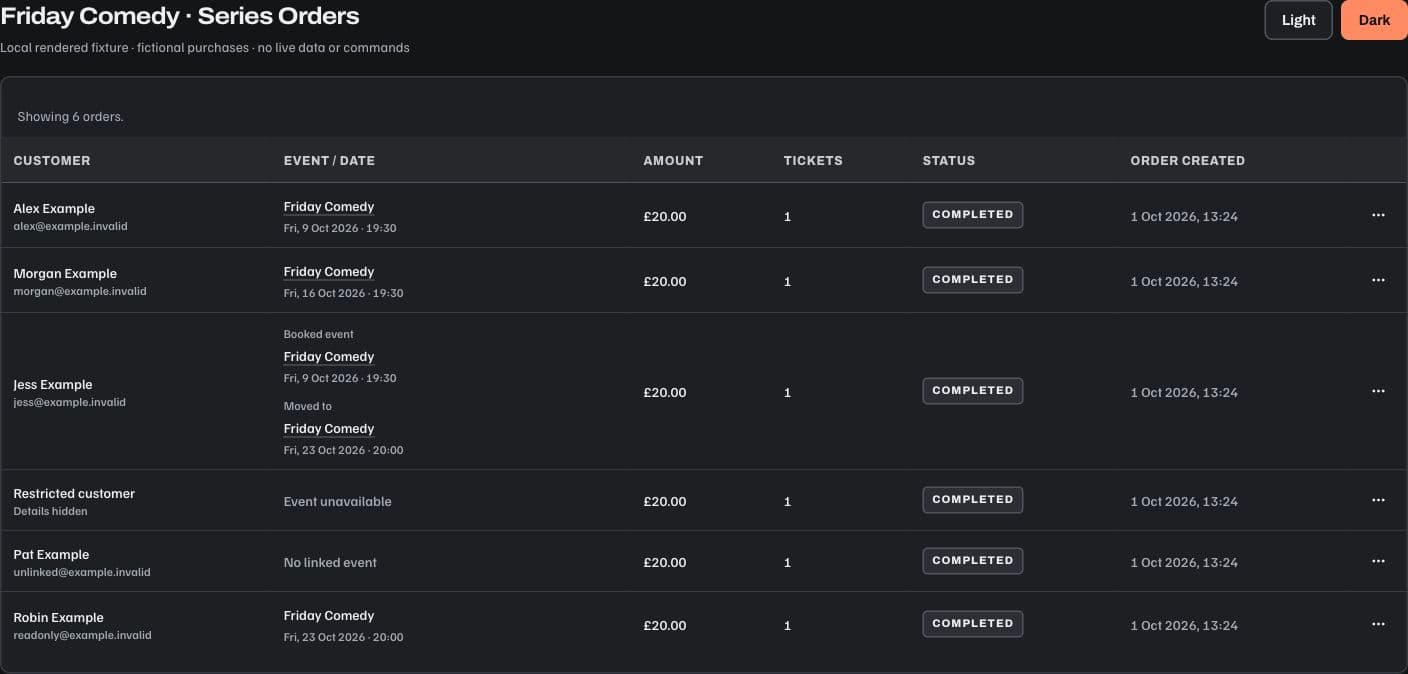
Series → Orders identifies each purchase with an Event / date column: the linked Event name, calendar date and local start time. Order created is the separate purchase timestamp. A date swap labels the original Booked event and current Moved to occurrence. Restricted or missing Event context is shown as unavailable; readable context links to the Event only when the operator can open it. This is a web Series table change; native screens retain their current layout and permissions.
Event schedule views
The web Events schedule offers List, Photo and Calendar views of the same accessible programme. Each entry names its Series, or Standalone event when it has none. A missing Series projection is labelled Series unavailable; the Series label itself does not grant access to its workspace.
List starts with eight entries and Show all reveals the rest. Photo shows an artwork card for every accessible Event, with a placeholder when approved artwork is missing or cannot load. Artwork resolves as cards approach the viewport. Both retain the existing upcoming-first order, admission, sold count and separately authorised revenue; redacted revenue displays a dash instead of zero. Event dates include the venue start time.
Calendar groups all accessible Events by their scheduled venue date, including entries beyond the List preview. Mini cards show time, Event, Series and status. Use the month field, previous/next arrows or Today to navigate; months without Events say so. Narrow screens show the whole month with event counts and cards below for the selected date. Changing views retains the selected month, date and List expansion for the mounted schedule. View/Edit/Duplicate/Delete retain the existing permissions and confirmation flows in every layout; switching layouts performs no writes.
This is a web schedule presentation; native schedules are unchanged. The source and synthetic evidence below describe the implemented view. Production availability follows its release candidate and authenticated acceptance.
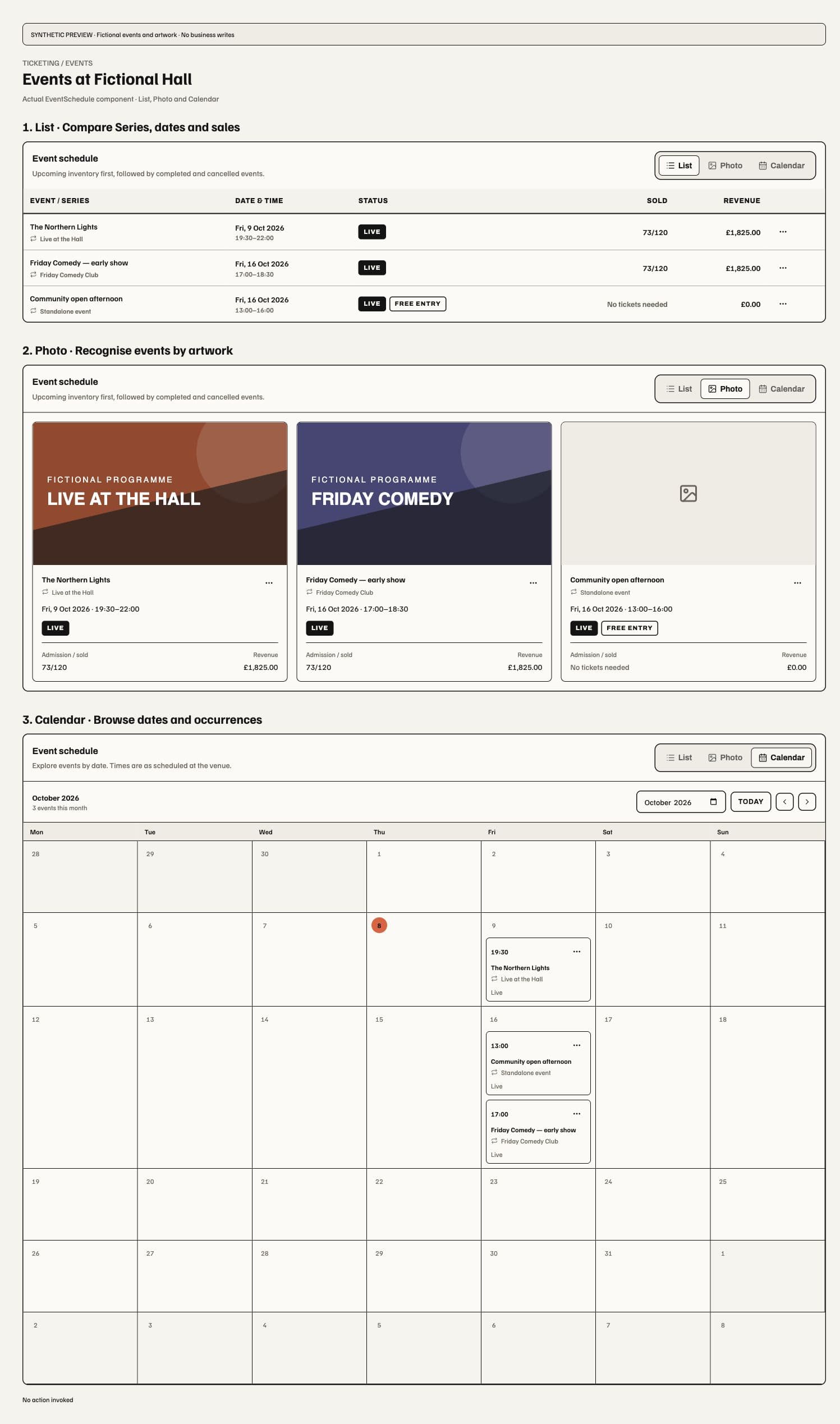
Synthetic documentation composition of the same fictional Events in three views. Numbered annotations explain the actual controls; the product shows one chosen layout at a time. No business data or commands are used in this preview.
Create and publish an event
- Choose Add an event and build its card: optional header image, name, description, date/time and a saved Site. Choose a Series when relevant.
- Choose No tickets needed, Free tickets or Paid tickets. The default is a listing without tickets. Optional presentation and FAQs can be expanded without entering ticketing settings.
- For a ticketed event, configure its products and any shared capacity pool. Switching admission mode preserves the editor draft, but inactive settings are removed on submission; free ticket prices are normalised to zero.
- Save the draft, review its details and use the explicit publication action. A failed ticket setup remains private.
- For paid sales, inspect Sales readiness and the effective published Payment Profile. Event publication and permission to take payment are distinct.
The web editor is one contextual event canvas. The optional event image sits at the top, followed by the name, category, description and date/venue facts. These are editable controls in the event itself; there is no duplicate preview sidebar. The attendance choice and its fee/readiness explanation sit below those facts. The narrow layout stacks fields while keeping the same order and options.
Guide beside the title opens optional, unnumbered explanations for describing the event, time/place, attendance, extras and saving. Copy follows listing, free or paid admission, recurrence and available publication permissions. Go to… reveals the relevant section, scrolls and focuses its control without changing values, turning on recurrence, opening a file picker or saving. Paid-sales readiness, timezone, errors and publication consequences remain by the controls. Full help opens in a new tab so the working form stays available.
The guide defaults open beside the form when the content container is at least 896px wide; otherwise it starts collapsed and expands above the fields. Explicit Show/Hide choices are remembered in this browser per signed-in user and editor, including reopening. Only that presentation preference is stored, never form values or business details. If browser storage is unavailable, the choice lasts while this app page remains open, including reopening the editor. Resizing and toggling preserve mounted fields; closing focused guidance returns focus to Guide. This is the prepared web candidate behavior, not a claim of production availability; native is unchanged.
Repeat this event reveals the existing weekly schedule. FAQs & extra details keeps the Series, reusable FAQ bank, event-specific FAQs and separate public page banner available. Ticket products appear for free or paid admission; ticket options and advanced capacity/resale settings remain expandable. Closing a section keeps its values. The event image accepts JPEG, PNG or WebP up to 5 MB through the existing picker or drop target; a failed replacement keeps the prior image. Uploading an image does not create or publish an event.
Save draft remains the default. Only operators with publication permission see Publish this event now. Creation first saves a private event, then creates its tickets before requested publication and recurrence setup. Failures after event creation direct the operator to the saved event with the failed stage identified; a failure before creation keeps the form available. Paid publication does not establish payment readiness. Native creation screens are unchanged.
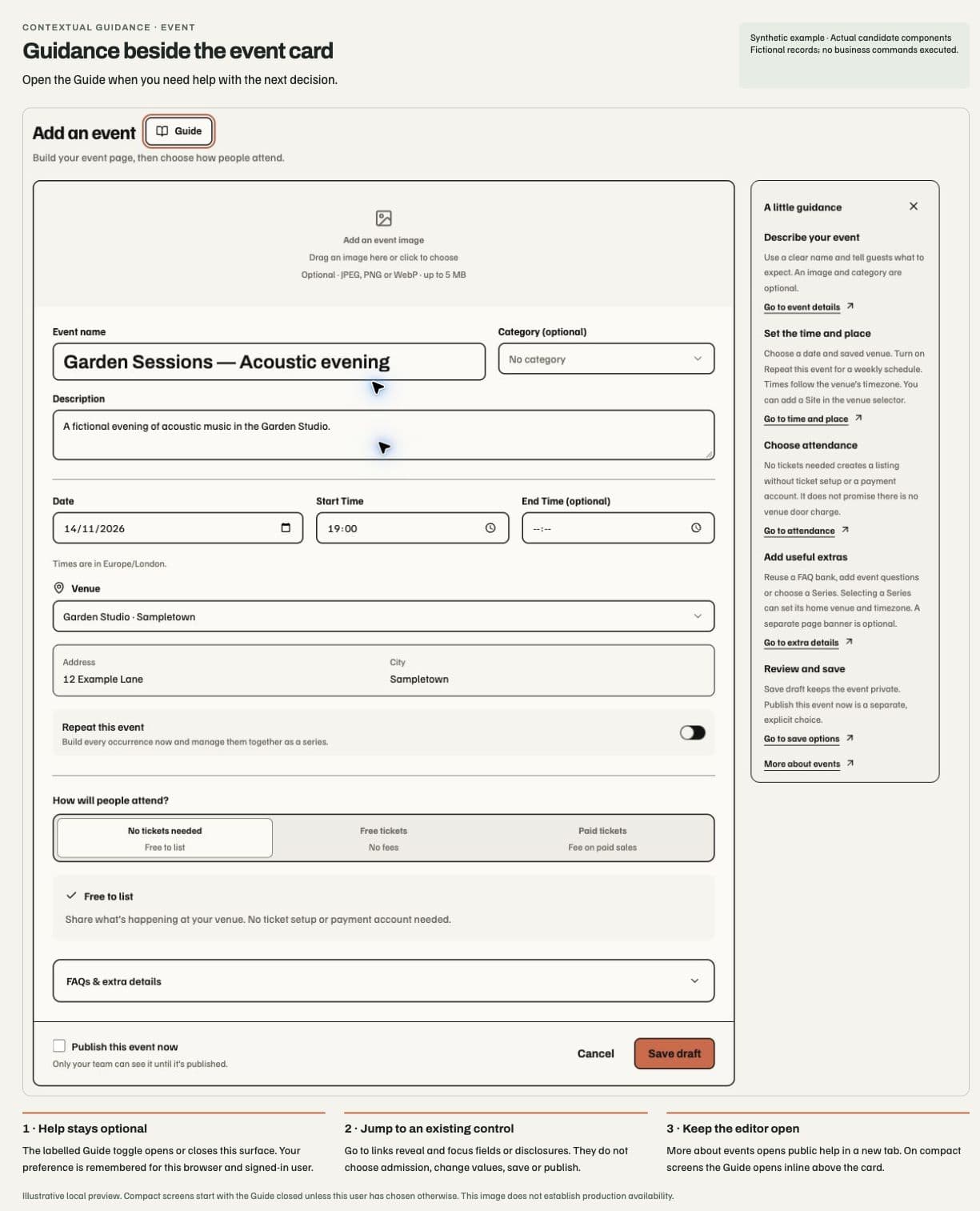
The public page says No tickets needed for a listing; this does not promise that there is no venue door charge. Hidden, paused and sold-out ticket products still make an event ticketed, even if its current public selector is empty. Operator lists use Free entry for listings and Free tickets when every product is free. Positive-price and donation products remain paid admission.
A published event freezes public configuration. Draft edits require publication; changes to an already-published Payment Profile can refresh its payment evidence without publishing an unreviewed lineup or event draft. Stale legal, tax or payment evidence can close checkout while the last valid presentation remains readable.
Ticket products, inventory and checkout questions
Ticket type controls include a name and description; free, fixed, donation or quantity-break pricing; finite or unlimited inventory; shared capacity; sale windows; public, secret-link, paused or scheduled visibility; minimum and maximum order quantities; release after another product sells out; product ordering; included benefits; attendee instructions; digital credential promise; self-service name, transfer and cancellation/refund policy; resale policy; and bounded integration metadata.
On web, Sell → Tickets uses two cards. Ticket types retains the tier editor and table; Capacity pools is its footer, with an Add pool form that opens on demand. Pools show sold/capacity and assigned products, and retain editing and the refusal to delete an assigned pool. Invalid or failed pool changes show an inline error and keep the draft. The Event header groups Make recurring, Duplicate and eligible Cancel event actions under More, beside publication and Edit. Date, time, venue and permitted revenue share one compact facts strip. Editing and publication remain separate actions.
The second card switches between Promoter holds and Complimentary & accreditation, with active counts. Management permission retains the existing workspace gate; named access-list reads retain their check-in permission. After Tickets is first opened, both views stay loaded. New hold and Issue tickets reveal separate forms; switching views or hiding a form retains its values without submitting anything. The Tickets workspace stays mounted across local Event menus. A different Event starts a fresh workspace and removes the previous one-time link disclosure. Successful creation resets the existing fields and closes the form; failures remain inline with the draft. Native screens keep their existing navigation.
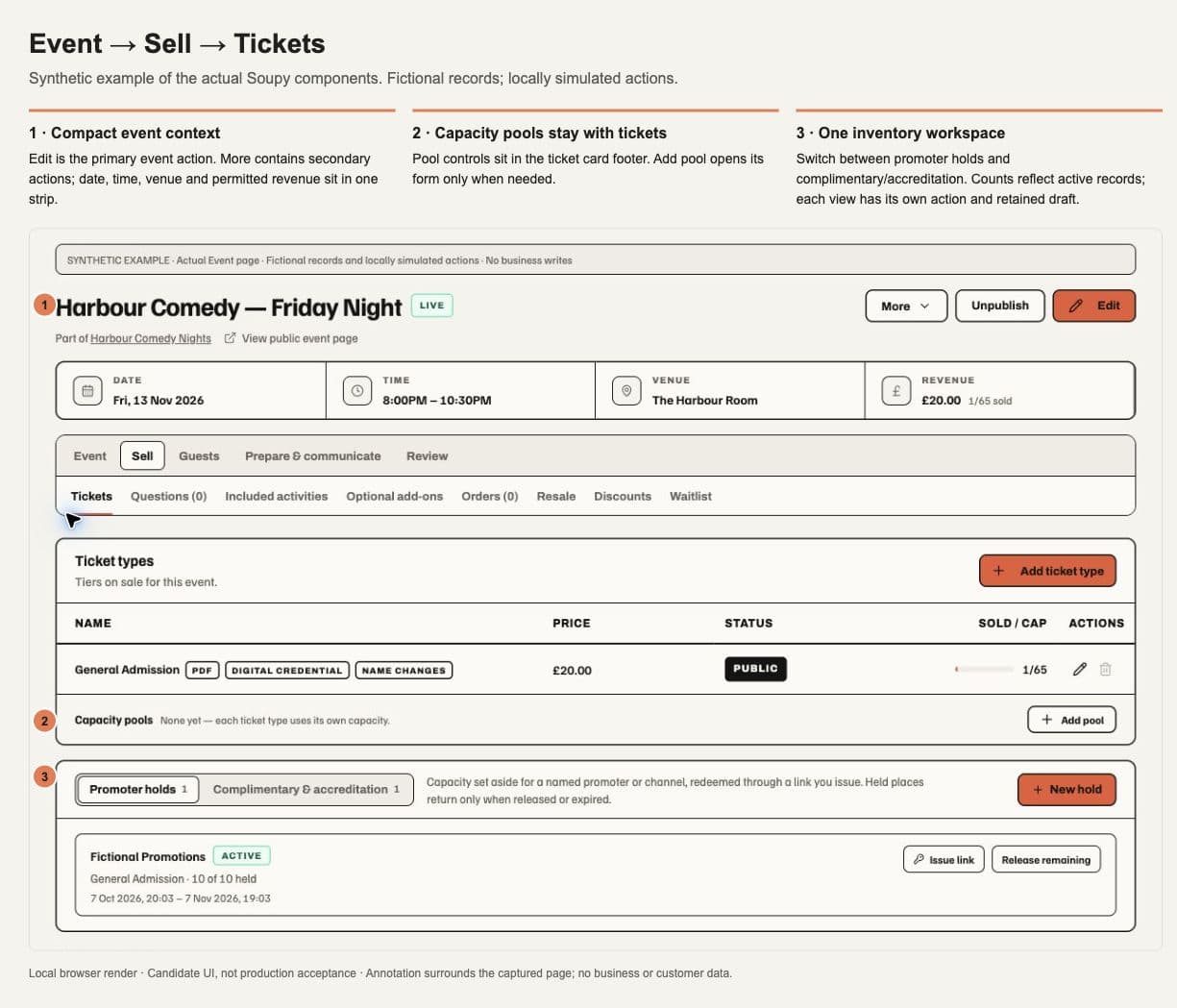
Local web preview using actual components and fictional records; this image documents the layout and is not evidence of production rollout or live issuance.
A finite shared pool constrains its member products together. Unlimited products retain sold counts and order limits but have no sell-out threshold. Holds count against capacity; released and expired reservations return it through the Order lifecycle. A displayed availability count is rechecked at the final reservation.
Checkout questions can collect answers once per Order or once per ticket holder. Their scope is consequential: attendee-scoped answers prevent self-service transfer because Soupy cannot silently give the answers to another person. Discount codes have their own amount and usage constraints. Secret products require their scoped link; a hidden product is not general public inventory.
A ticket can include an activity or one table booking without extra charge. For an included table, the operator chooses the Site or Space, fixed time and duration; Bookings allocates an appropriate table from live inventory. An optional Require a pre-order setting freezes a published menu and deadline. It is off by default. The admission ticket, table hold and payment remain one coherent purchase; failed availability does not leave a partial reservation.
Series, recurrence and distribution
Start with one complete occurrence, then configure a bounded weekly recurrence: selected weekdays, inclusive end date and optional excluded dates or ranges. The source occurrence supplies default tickets and settings. Series Settings provides cover artwork, image propagation and ticket-swap policy. Embeds, Team & access and Payments have their own menu entries alongside Settings. Payments groups the inherited payment account and ticket VAT treatment; saving these controls retains their existing publication and seller checks.
The web Events tab presents one card with Upcoming and Past segments and counts. Upcoming opens by default and lists live/draft dates oldest first; Past contains completed/cancelled dates newest first. Each segment retains its empty state. The header checkbox selects only the displayed group. Select drafts replaces the selection with upcoming drafts and opens Upcoming.
Selections survive changing segments and local Series menus. A chip such as 2 in Upcoming reveals selected dates in the other segment. Opening another Series starts a new selection. The compact action row shows eligible Publish and Unpublish counts: publication applies only to drafts, unpublication only to live Events; past/cancelled Events keep their status. Management enables Edit and Delete; publication authority separately enables Publish and Unpublish. Sold totals require Orders or Reports access, and revenue requires Reports.
Edit and Delete review the dates captured when the dialog opens; Delete requires the exact displayed confirmation phrase and retains protected-record checks. Selection changes pause while an action runs. Successful dates leave the selection; failures remain selected with named errors. The result stays visible after selection clears, including after deleting the final date. Navigation alone never edits, publishes or deletes. These controls reuse the existing Event commands; native screens keep their existing flows.
Talent is a separate Series menu entry alongside CRM. Recurring Talent
controls live there; Events stays focused on the occurrences and their bulk
actions. The Talent entry requires the enabled module and current talent.view
authority through its registered Series contribution. An unavailable
?view=talent falls back to Events. Managing defaults or sending date offers
still requires both Talent management and Series management authority. Switching
tabs preserves selected acts and dates without saving defaults or sending offers;
opening another Series starts a separate editor. These are web workspace controls;
the native Ticketing screens retain their existing navigation.
The Series resource checks Talent management at its stored Site and Space before enabling the editor. A management grant for another Site does not unlock these controls; an admitted reader keeps disabled act/date choices without Save or Offer actions. Revoked access or a retired Talent subscription cannot restore management through broader workspace rights. Saving defaults and offering dates still recheck their existing source permissions; an offer also checks each Event. A Space-only Talent manager can save defaults when permitted to manage the Series; offering dates additionally requires Talent management for the Site.
Changing a schedule cancels only eligible future generated occurrences. Occurrences with protected Orders remain visible for explicit cancellation or rebooking. Removing an exclusion can restore recurrence-suppressed occurrences; it does not restore manually cancelled events. A Series is optional for a one-off event and does not replace each occurrence's actual location.
Public discovery includes /whats-on, organisation event pages at
/org/[orgSlug]/[eventSlug], Series embeds and configured website sections.
In Series → Embeds, Embed the series manages a widget of the Series’
published upcoming Events. New published dates appear automatically and exclusions
can omit particular Events. Embed a single event selects an accessible
occurrence and opens its own Embeds menu. Every Event, including standalone
Events, has Embeds with a builder permanently limited to that Event.
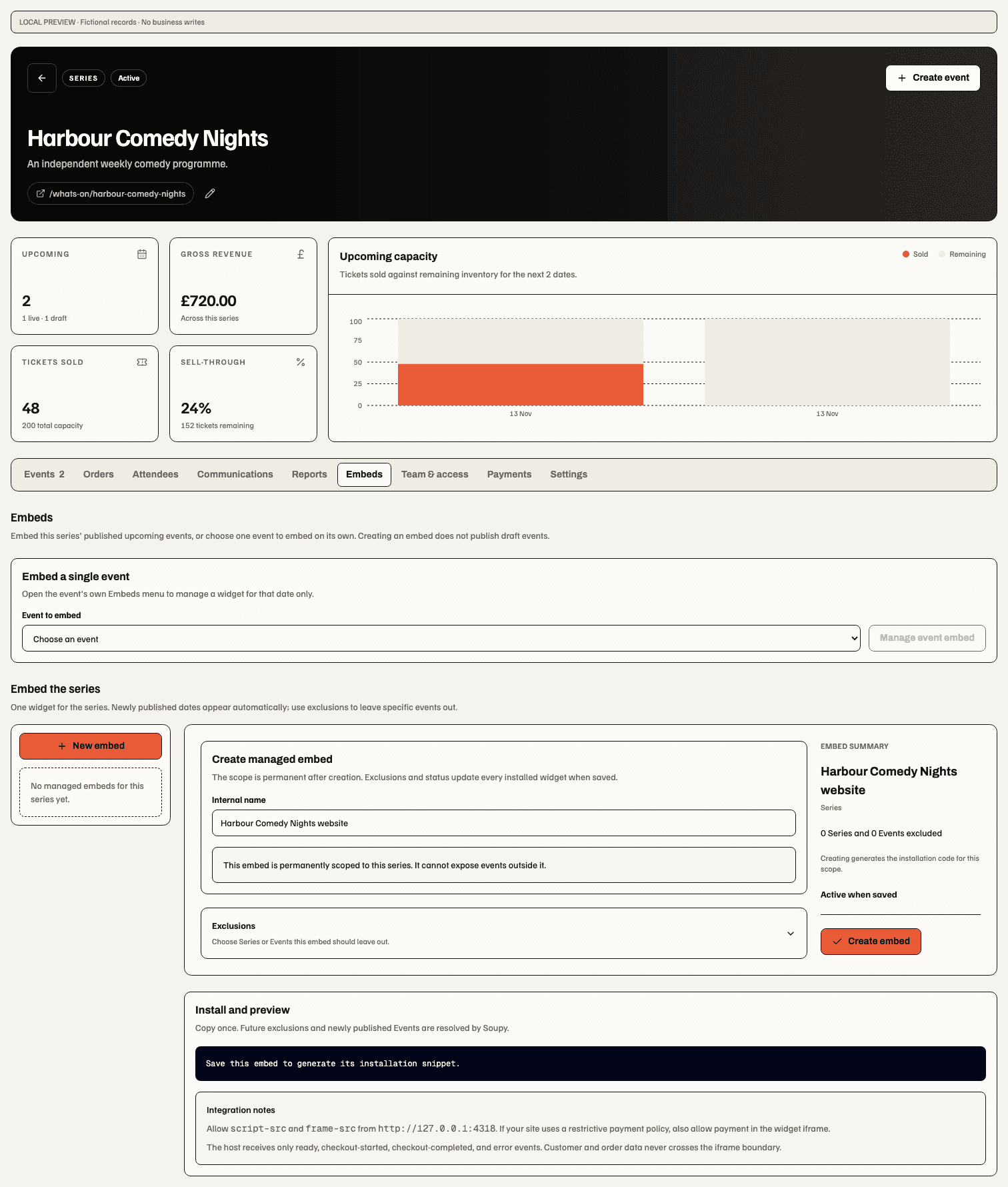
Creating an embed does not publish an Event. Draft, cancelled and past Events remain absent; sold-out published Events remain visible. An active widget with no eligible Events shows an empty result. Existing embeds can be edited, disabled or re-enabled, and saved changes affect the installed widget. Failed saves retain the draft and report an error. Switching resource panels preserves unsaved embed, access and payment edits; switching does not save, publish or send them. These management menus are web workspace controls; the native Ticketing screens remain focused on their existing operational flows.
The embed builder controls the allowed listing and checkout presentation; website/domain setup must be published for its exact organisation scope. FAQs can combine event-specific answers and a reusable FAQ bank. A post-purchase button may link to a guide or other approved destination after confirmed purchase.
Ticketing settings
Settings groups public identity (Ticketing name, short description, support email, website and primary/accent colours), sender identity (sender name, reply-to and support email), and customer policy (privacy notice, purchase terms, refund policy and data-protection email). Analytics consent and Order/attendee retention have separate controls. The editor shows a factual summary before saving. These settings do not replace provider configuration or customer consent.
Website sections, custom domain/presentation and embed builders have specialist entry points. Event/Series Team & access is a separate resource menu and can administer invitations, user types, local grants and blocks at that exact scope; broader grants remain managed at their originating scope. A local team editor cannot silently widen an Event invitation to the whole organisation.
Buyer journey and ticket aftercare
- Open the public event, review venue, programme, ticket price and conditions, and select quantities.
- Enter the buyer's name, delivery email and required answers, then continue without an email-code step. Each ticket is assigned to the purchaser or a named email holder; the purchaser remains the Order owner.
- Select any optional add-ons, review each seller, fees and included promises, then complete the supported payment or free confirmation.
- Wait for Soupy to confirm the Order. An accepted card payment awaiting its provider confirmation remains in progress, with advice not to pay again.
- Open delivered ticket credentials or the Web Wallet. Available actions depend on the purchased policy and current ticket state: download, native Wallet save, eligible holder changes, transfer, policy-permitted cancellation/refund or official resale.
The private ticket screen combines Event details, holder and live QR in one perforated card. Use the pencil beside the holder to edit an eligible attendee name. Transfer, refund/cancellation, Official Resale and durable-pass details open independently below the save options; collapsing a section preserves its draft and does not submit it. Checked-in tickets replace the QR with their admission status. Cancelled Events retain a service record and disable QR and native/PDF delivery. The layout adapts to narrow screens and the selected theme.
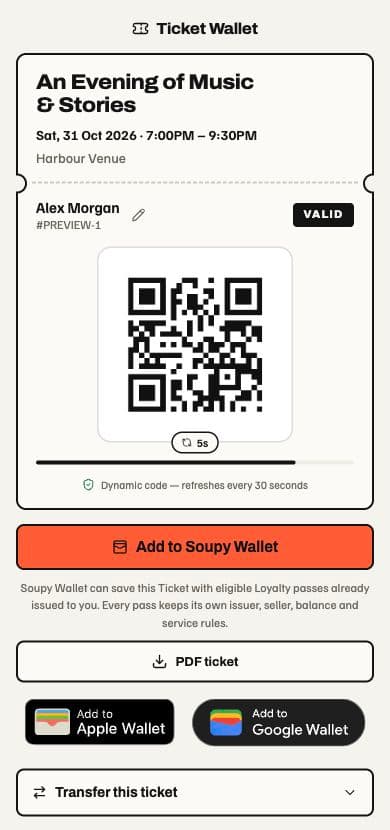
Confirmation and transfer emails include official Apple and Google Wallet badges for the ticket's enabled channels, plus PDF ticket attachments when the purchased product permits PDFs. Delivery rechecks the frozen recipient, current holder and private link before rendering attachments and immediately before sending; a transferred, refunded or cancelled ticket cannot leak a replacement holder's credential through an old email job. Each ticket retains its own save links and PDF in multi-ticket and multi-seller purchases. Provider save requires a ready issuer and signer; a browser delivery failure returns to the live Ticket Wallet with an explanation and retry options. Saving a pass on an actual Apple or Android device remains a separate provider acceptance check.
Google event tickets show the Event title and QR together with three detail rows: date/time, ticket type/venue, and ticket holder/reference. These use the current ticket's existing presentation fields; missing values are omitted by Google. Saving an eligible ticket again reconciles its successful Google card layout once per layout generation and class revision, retaining its existing pass identity. Google controls the final rendering and propagation to saved passes. Failed delivery jobs retain their separate recovery requirements; a layout refresh does not reset them.
Guest purchase and ticket delivery do not verify an account or grant access to Wallet history. Wallet and account access keep their separate verification. Entering an existing email does not reveal or change its CRM profile or past Orders; the purchase keeps the name and email submitted for that Order.
Entering Details focuses the labelled Full Name input. Other checkout steps and terminal states focus their semantic headings.
The discount-code field appears for supported ticket selections. A multi-seller Basket omits the field and its unavailable-code notice.
Transfers concern the ticket holder, not the purchaser, purchase totals or marketing consent. A current holder can transfer directly to a named email without asking the recipient to enter a verification code. The transfer emails the private ticket link and immediately rotates the wallet/QR credentials; old wallet links, PDFs and native passes stop authorising admission. Date swaps are restricted to valid same-price matching products and eligible occurrences in the Series. The Order keeps the original sale event and labels a later fulfilment event Moved to; attendees follow their current Ticket event.
A cancelled event exposes a cancellation service queue. Cancellation notices, refunds and rebooking are recorded separately; changing Event status does not claim that money has already been returned or that a performer agreement ended. Waiting-list entries distinguish waiting, notified, purchased and expired. Interest registration is a verified relationship signal, not marketing consent.
Waitlist, promoter allocations and official resale
The public waiting list verifies the recipient and records the ticket product and quantity. When inventory returns, eligible members are offered capacity in FIFO order with an exact 30-minute hold. The invitation link is one-use and checkout consumes that same held capacity. Expiry/release returns the units before the queue advances. Interested People is a separate pre-sale signal: it is off by default, closes when sale starts and is not a queue position.
For a promoter allocation, open Event → Sell → Tickets → Promoter holds, choose New hold, then select a finite product, name the promoter/channel, set quantity and validity, and choose Create hold. Capacity is held immediately, reducing public stock. Issue its scoped link for bounded partial purchases, or rotate/revoke/release it as permitted. Buyers enter their name and delivery email without an email-code step. Allocation capacity can be used while public stock is sold out; it creates no payment or settlement beneficiary.
Issuing a redemption link reveals it once in the hold row. Copy it before dismissing the panel; dismissing hides the local disclosure and does not revoke the link. Rotation and revocation require their existing confirmation prompts. Release or expiry returns unused places. A link may support bounded partial redemptions; one-time disclosure does not mean single-use redemption.
In Complimentary & accreditation, choose Issue tickets, then select Complimentary or Accreditation, a credential class, product, quantity, named holder, reason code, written reason and exact check-in lists. Changing product clears the list selection. Issuance requires an eligible live Event, available inventory and the existing source authority; it creates zero-revenue tickets and queues normal delivery. It is an explicit action, never a consequence of opening the form. These records do not count as sales or settlement evidence.
An active issuance's Cancel action opens a required reason field; Keep active closes that review without cancelling. Confirmation uses the existing source checks and can refuse checked-in credentials or resale locks. A failed cancellation retains its reason and error; success updates the issuance through its normal inventory and fulfilment lifecycle.
To enable official resale, configure the Event policy: disabled, always,
after sell-out or within a stated time before the event, with applicable product
price limits. An eligible holder opens the Ticket Wallet, enters the asking
price and lists the ticket; the wallet explains locks or unavailable actions.
A buyer opens /resale/[eventId], selects a listing, supplies their name and
delivery email, then reviews and pays without an email-code step. Failed/expired
reservation returns to the list with a recovery explanation. Resale transfers
the admission and included activity entitlement to the replacement credential
without creating extra inventory. Existing resale/refund locks can block holder
edits, transfer, cancellation or a second sale.
A holder cancellation/refund first previews eligibility, deadline, refundable money and reason requirements. Zero-cash cancellation returns admission with no card money to reverse. Paid cancellation follows its frozen supported refund policy and provider-confirmed operation; a button click does not prove return of funds. Operator order/attendee row menus separately expose eligible edit, reminder, reassignment, void and refund actions under current state and authority.
Check-in, named lists and offline door operation
Open an Event's Check-in workspace, choose the appropriate list and scan a credential or find an allowed guest. The admission result is authoritative for that exact event/list. Staff undo is a separate governed action; door-device credentials do not inherit it.
Managers can create named lists, issue expiring revocable device sessions and reveal a setup QR. A door operator can choose Set up check-in in the Soupy mobile app before staff sign-in. The setup credential grants only the assigned Event/list and minimal admission roster; it cannot browse CRM, refund or use the phone owner's staff privileges.
Offline preparation downloads a bounded roster protected by a local PIN. Offline scans remain provisional until reconnection, reconciliation and server acknowledgement. Conflicts are reviewed in the operator workspace. A disconnected phone cannot instantly know another phone's scans, a refund or remote revocation. Known access failure is retained across disconnect/restart. Oversized rosters refuse offline preparation; online check-in has its own bounded roster limit.
Reports, communication and feedback
Reports distinguish retained sales, held inventory, finite capacity and unlimited products. Gross sales, tickets sold, sell-through and events selling have separate meanings; a hold is not a retained sale. Exact Event/Series scope and reporting permission apply before aggregation. Currency totals stay separate.
Operational communications use a reviewed scope and current sender readiness. Feedback has its own form version, identity policy, minimum response cohort, retention periods, eligible invitation audience, timing and expiry. Publish the form, review the audience and sender, then enable the invitation journey. Anonymous feedback is not secretly tied back to an Order or customer.
The Private recovery panel can assign an owner, record contact attempts and guest replies, and resolve with a recorded outcome. Recovery access is distinct from aggregate feedback access; enabling recovery requires an eligible owner. Publishing a template or enabling a journey is not evidence of delivery.
| Responsibility | Capability |
|---|---|
| Read programme | ticketing.view |
| Edit / publish Events | ticketing.events.manage / ticketing.events.publish |
| Read / export attendee data | ticketing.attendees.view / ticketing.attendees.export, plus the source's exact seller and scope checks |
| Door admission | ticketing.check_in |
| Operational messages | ticketing.communications.send |
| Sales reports | ticketing.reports.view |
| Feedback read / author / send / recovery | ticketing.feedback.view, .manage, .send, .recover |
| Ticketing Settings | ticketing.settings.view / .manage |
| Event / Series Embeds | ticketing.events.manage at the exact resource; this does not grant organisation-wide embed management |
| Event / Series Team & access / Payments | Resource management plus the existing access.manage / payments.manage checks; payment controls require the workspace Group |