Passwords is available in enabled pilot workspaces for shared venue codes and logins. A business needs current capability access, a commissioned vault service and an approved first custodian. It works online in the web workspace and desktop shell. On supported workforce apps, Browse opens the permitted web workspace in the browser.
Find and reveal an entry
Open Passwords in your business workspace. The list starts at All authorised sites. Search authorised entry names or filter Site, Area and Function independently. A Site and a collection control who can open the entry. Area and Function help staff find it. Example functions include Door Codes, Alarm Codes, Music, EPOS and Tills, PC Logins and Wi-Fi.
Open an entry and select Reveal code or Reveal password. If prompted, complete verification, then select Reveal again. One current value appears for up to ten seconds. A saved email or username appears with its password. Hide now, leaving the entry or switching away hides the value. Reveal activity records when the service made a value available. Web and desktop can be captured by the device. Screenshot blocking is a future feature.
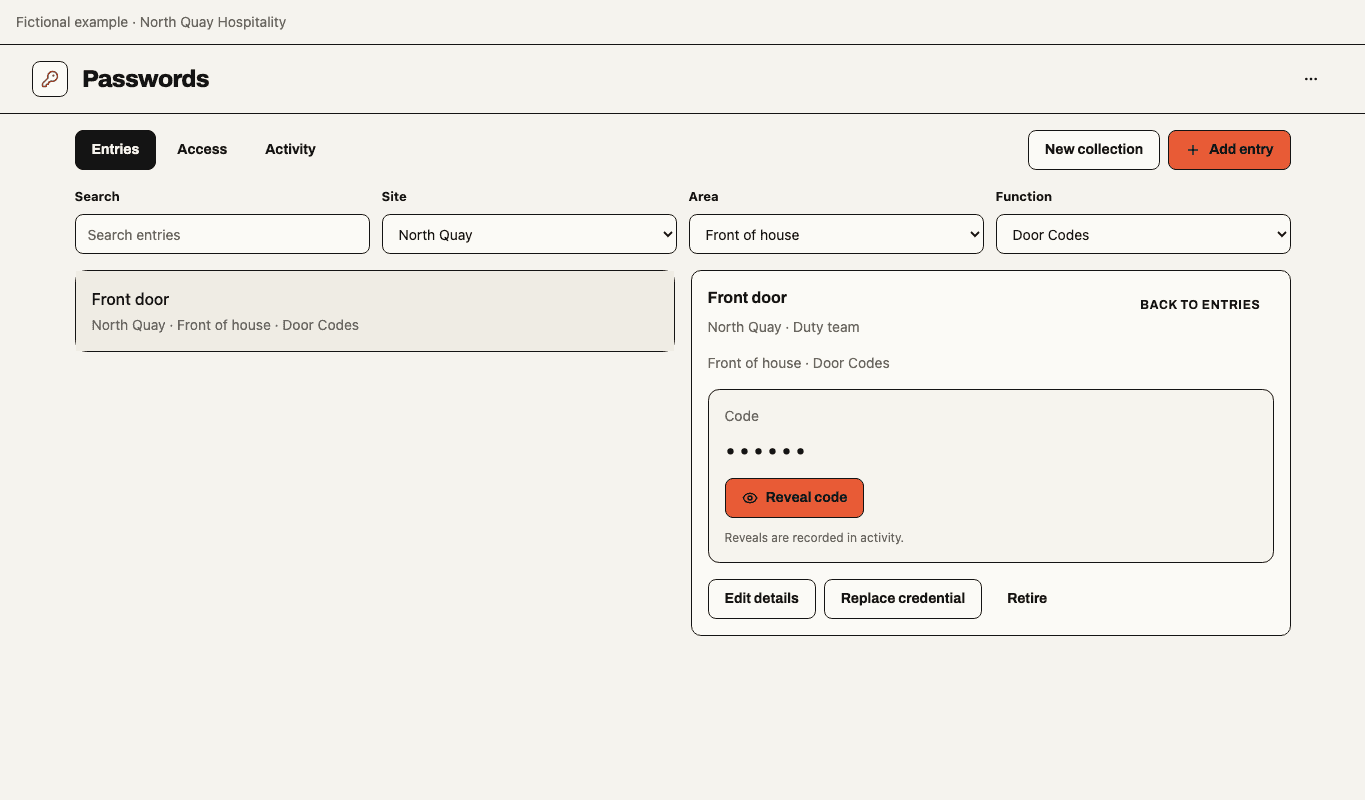
Fictional operator preview, 22 November 2026. Site, Area and Function narrow the list. The entry's Reveal button shows its current value on demand.
Add, replace or retire shared credentials
Choose New collection and select one Site or an explicitly business-wide scope. Eligible managers can then Add entry to an existing collection. Set the name and type, then choose optional area and function labels. For a Login, enter the Password and, if used, an Email or username. The email or username is readable while you type. Select Show password to check the draft and Hide password to mask it again. Codes preserve leading zeroes. Keep credentials out of entry names and classification labels.
Edit details changes the entry metadata. To change the saved value after changing it at the source, use Replace credential, confirm the source change, and save the replacement. Enter any email or username you want to store with the replacement password. Retire credential removes it from reveal and retains permitted activity. Offboarding removes Soupy access. Change any affected code at its door controller, alarm panel or service.
Control access and see activity
Passwords needs an active membership, the business product, an explicit Site or business grant for the action, and admission to that entry's collection. Personal blocks and expired or removed authority still apply. Holding an administrator or Group role alone gives no collection access. The first custodian can assign Site or business permissions in People & access. Access shows the named members. Collection managers add staff by their sign-in email after People & access grants the appropriate responsibility. Activity shows recent scoped actions such as adding, replacing, retiring, releasing a value and changing the collection audience.
An incomplete identity check, disabled product, lost collection access or an unavailable vault service leaves credentials hidden. Arrange a venue fallback for connectivity outages before using the preview for physical access. Passwords has its own search and does not surface entries in workspace search, Assistant, exports, notifications or offline storage.